
Smart Attendance & Time Tracking with Managetrix
Managetrix’s smart attendance and time tracking module records complete attendance each working day, including punch-in, punch-out, location, and attendance status recorded for the employee, whether working in the office or remotely. Managetrix is self-hosted and bought once, with a one-time licence instead of a monthly fee for every user.
Read a Month at a Glance: On-Time, Late, Overtime, Weekend
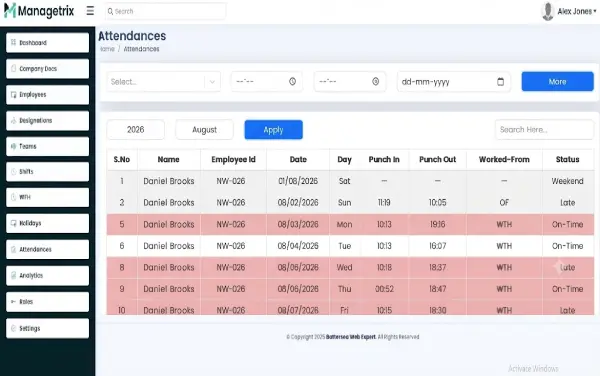
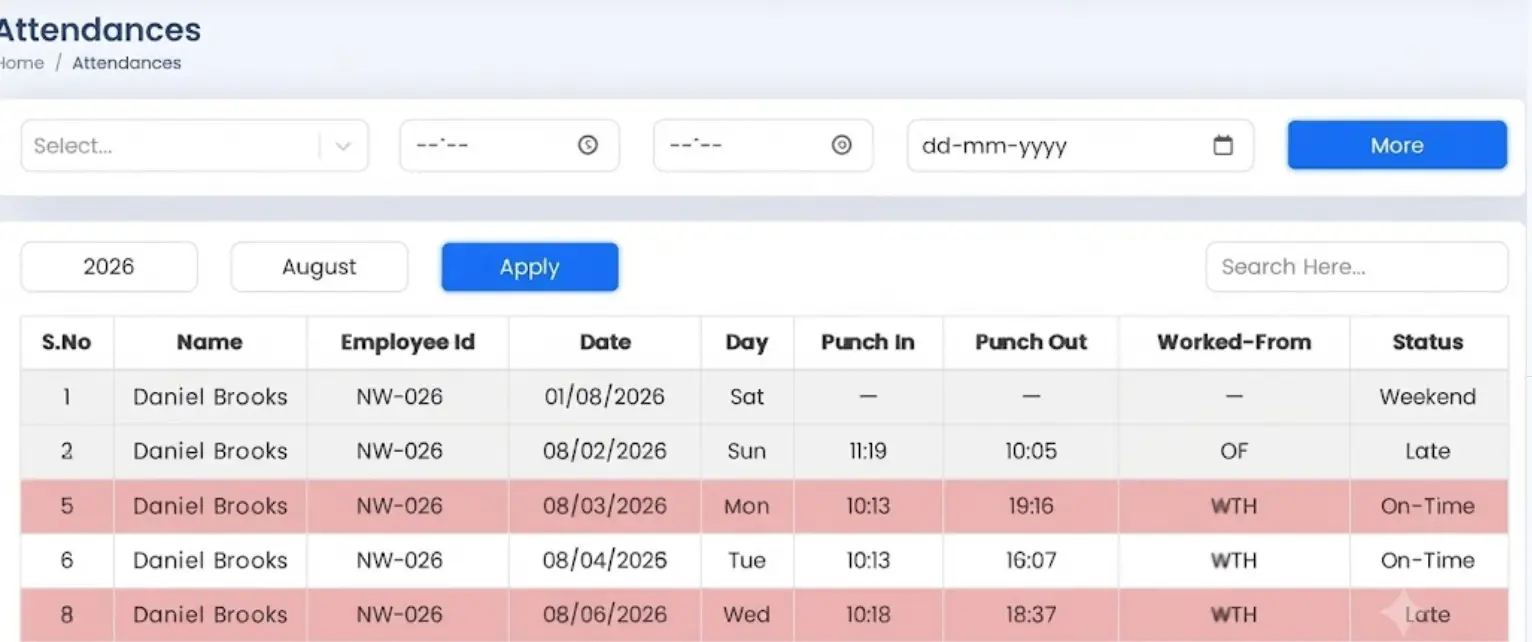
The appearance of each row in the attendance table helps to identify an employee’s daily status. The colour of a row tells you how the day went:
Ordinary Working Days: A plain white or light-grey row represents an ordinary working day; the status column shows “On-Time” for such days.
Overtime Days: A green row shows that the employee worked overtime that day; in this case, “OT” appears in the “Worked-From” column.
Late Days: A red row signifies that the day has been flagged as “Late,” meaning the employee punched in after the expected start time.
Weekends: Weekends appear as normal attendance rows, with “Weekend” displayed in the status column.
Weekend Punch Fields: The punch-in and punch-out fields are filled with dashes, as regular attendance is not expected on Saturdays or Sundays.
Remote Days: Remote days are not colour-coded. They are identified by WFH in the Worked-From column.
Comprehensive Daily Attendance Dashboard
The Attendances screen shows one employee’s whole month in a single table, with the columns running from left to right in this order:
The serial number of the attendance row.
The name and employee ID of the employee whose attendance record is being displayed.
The calendar date and day of the week, making it easy to identify weekends such as Sunday.
The timestamps marking the start and end of the employee’s working day.
Shows where the employee worked that day: In Office, WFH, or OT.
The attendance classification for the day, such as On-Time, Late, or Weekend.
Read a Month at a Glance: On-Time, Late, Overtime, Weekend
The appearance of each row in the attendance table helps to identify an employee’s daily status. The colour of a row tells you how the day went:
- Ordinary Working Days: A plain white or light-grey row represents an ordinary working day; the status column shows “On-Time” for such days.
- Overtime Days: A green row shows that the employee worked overtime that day; in this case, “OT” appears in the “Worked-From” column.
- Late Days: A red row signifies that the day has been flagged as “Late,” meaning the employee punched in after the expected start time.
- Weekends: Weekends appear as normal attendance rows, with “Weekend” displayed in the status column.
- Weekend Punch Fields: The punch-in and punch-out fields are filled with dashes, as regular attendance is not expected on Saturdays or Sundays.
- Remote Days: Remote days are not colour-coded. They are identified by WFH in the Worked-From column.
How Employees Punch In and Punch Out
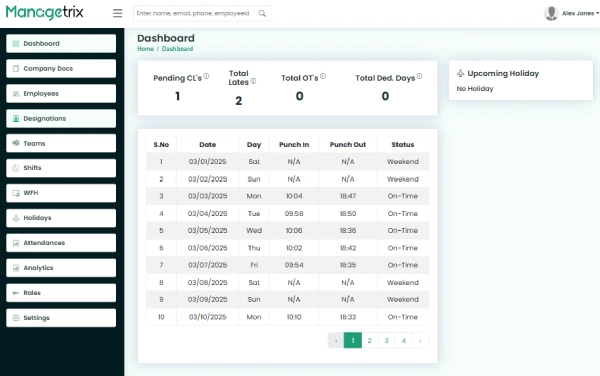
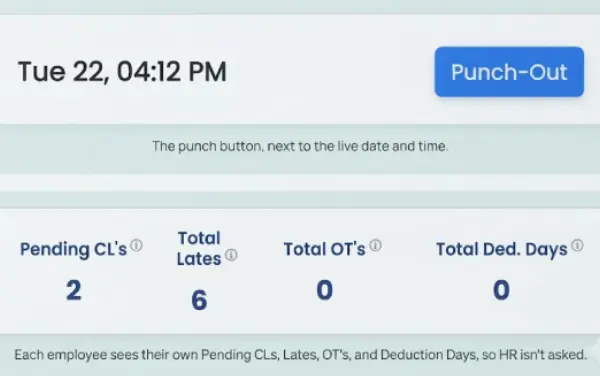
Each employee has one punch button on their own dashboard, next to the current date and time. Once the day has started, the button reads Punch-Out, so ending the working day is a single click.
Employees’ monthly running totals—including pending Casual Leaves (CLs), total late arrivals, total overtime (OT), and total deduction days—are also visible on the dashboard.
Below the totals, the employee sees their own attendance for the month, with a month selector. It uses the same columns a manager sees, limited to their own record.
An Upcoming Holiday panel on the dashboard shows upcoming holidays, giving employees visibility into future days off.
Office, remote, and overtime days in the same records
Status of punch-in and punch-out records
Same as a regular office day
Overtime work shown as OT
Fix A Missed Punch without rebuilding the month
If someone forgets to enter the details of punch-in and punch-out, hr has access to correct those details
Pick the employee
Set the punch-in and punch-out time details and date
Press Mark; only that day changes
Admin can mark attendance, and the team leader can also mark attendance for their team
Office, Remote and Overtime Days in the Same Record
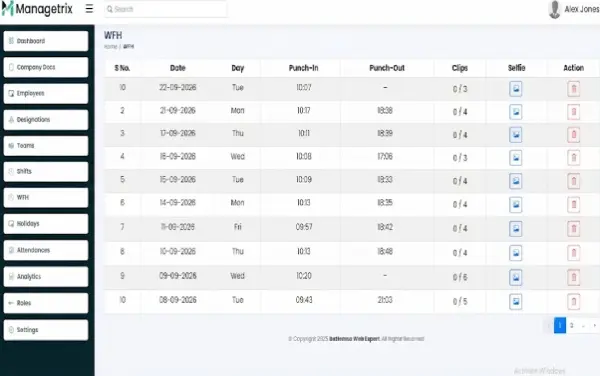
- The ‘Worked-From’ column is an important part of the daily attendance record and shows an employee’s work location or whole-day classification, allowing both office-based and remote attendance to be tracked in a single record.
- In a hybrid setting, ‘In-Office’, ‘WFH’, and ‘OT’ entries can all appear in the same attendance table. This eliminates the need to maintain a separate attendance record for remote days.
- A remote day is still a punch-in, a punch-out and a status. It is not a different kind of record.
See a Full month of attendance on one screen
Book A demo on the attendance screen with your own question or compare the plans
Fix a Missed Punch Without Rebuilding the Month
- An employee might sometimes forget to punch out, or a regular punch might be missed while working at a client site.
- In such cases, an employee’s record can be updated using the manual entry controls on the attendance screen.
- An admin or an authorized team member can select the employee, enter the punch-in time, punch-out time, and date, and then use the ‘Mark’ step to create or correct the attendance record.
- The practical benefit of this is that corrections can be made for a specific day without disrupting the rest of the monthly attendance records.
- Who can make these corrections depends on the permissions set in User Roles & Permissions Management.
Monthly Totals for Every Person, Side by Side
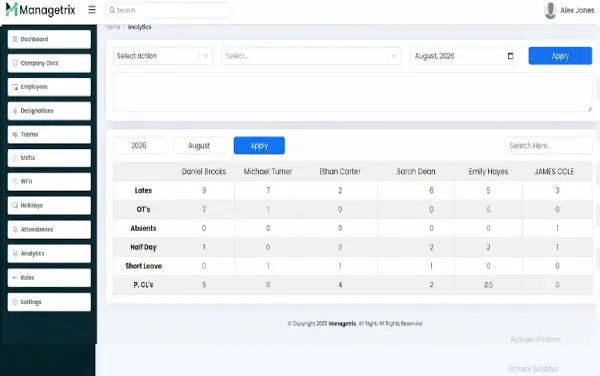
The daily attendance table answers what happened on a given day. The monthly totals grid answers a different question, such as who was late most often in August, with people across the top and the measures down the side.
The grid shows detailed information including late entries, overtime (OT), absences, half-days, short leaves, and pending Casual Leave (CL). The CL column also displays whether it is applicable with ‘Yes’ or ‘No’.
It uses the same Year and Month selectors as the daily view, so the two screens stay in step.
For example, the daily attendance table displays that an employee is late on August 5th, whilst the monthly totals view shows a count of how many times an employee is late during the month.
For report generation and analytics, please visit the HR Analytics & Insights page.
Want to see your team’s month like this?
Ask for a walkthrough of the attendance screen, or check which plan includes it.
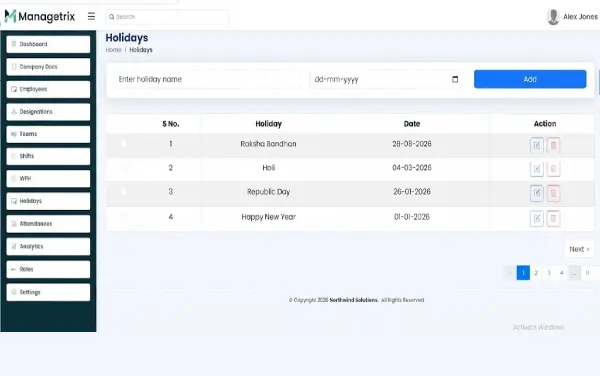
Weekends and Declared Holidays Are Recognised Automatically
- Automatic Weekend Recognition: Weekends are recognised without anyone marking them. The Status column reads Weekend, the punch times show dashes, and no absence is recorded.
- Company Holiday Calendar: Declared holidays come from the company’s own holiday list, which HR keeps up to date by holiday name and date.
- Approved Leave Tracking: Approved leave is handled through leave requests, which carry their own status and show who approved them.
Your Attendance Data, on Your Own Server
Attendance data is one of the most sensitive records a company keeps: it shows exactly when each named person was, and was not, working.
To view options and current pricing for licences, please visit the Pricing page.
See a Full Month of Attendance in One Screen
Every punch-in, late day and overtime day for the month sits in one table per person. Try the demo to see the Attendances screen, or compare the licence options on the pricing page.
Frequently Asked Questions
What is attendance and time tracking software?
Attendance and time tracking software records when each employee starts and finishes work, where they worked from and how the day was classified. It replaces paper registers and spreadsheets with one monthly record per person.
How does Managetrix decide whether a day is marked as ‘Late’?
A day is flagged Late when the employee’s punch-in falls after the expected start time. The row turns red, so late days stand out straight away when a manager scans the month.
What do the green and red rows signify?
A green row is an overtime day, and the Worked-From column reads OT. A red row is a day flagged Late. Ordinary on-time days stay plain, and weekends show Weekend in the Status column.
Can I track remote and office-based employees together?
Yes. Office and remote days sit in the same attendance table. The Worked-From column shows In Office, WFH or OT for each day, so a hybrid week stays one continuous record.
What happens if someone forgets to punch out?
An admin or team lead with the right permissions picks the employee, enters the punch-in time, punch-out time, and date, and presses Mark. Only that day changes; the rest of the month stays as it was.
Does the system count weekends and holidays as absences?
No. Weekend rows show Weekend in the Status column with dashes in place of punch times, and declared holidays come from the company’s own holiday list, so neither is counted as an absence.
Is Managetrix attendance billed on a per-employee basis?
No. Managetrix is sold as a one-time licence, not a per-employee monthly subscription, so adding people does not change what you pay. Compare the licence tiers on the pricing page.